AutoRemote
joaomgcdProductivity
4.0108.00 Reviews
- Version
- 3.2.9
- Installs
- 10.00K
- Age Rating
- Everyone
Screenshots
Our Review of AutoRemote
 Analysis by Appyee
I find AutoRemote most useful when I treat it as a small, deliberate bridge between devices rather than a magic button that automates everything on its own. It is a paid Android productivity app from joaomgcd, priced at $3.49, and its appeal is clearest if you already have a computer or cloud-service workflow you want to connect to your phone. With an average rating of 4.0 from around 860 ratings and over 10,000 installs, it has a more focused audience than a general-purpose automation tool. I’d recommend it to someone who enjoys setting up a repeatable routine; if you want an app that works immediately with no configuration, I’d look elsewhere.
Start with one reliable routine
My advice is to begin with one simple message that has an obvious result, such as sending a command from your phone to a computer and checking that the computer responds. AutoRemote is built around communication between devices, so a clear first test makes it easier to understand the path a message takes. Once that works, add a second step only if it solves a real annoyance. Building a complicated chain before confirming the basics can make it hard to tell which part needs attention.
A realistic everyday use is arriving home and using a phone action to prompt a computer-side routine, or sending a notification from a computer so I can see that a task has finished while I’m away from the desk. The useful detail is not simply that a message arrives: it is choosing a message that means something in my routine and keeping the response predictable. For example, I’d use separate, clearly named messages for different outcomes rather than relying on one vague command for several jobs. That makes later troubleshooting less confusing.
AutoRemote is especially appealing if you already use Tasker and enjoy connecting small actions into a personal system. It can also suit someone who wants an Android device to communicate with a PC or cloud services, including IFTTT. If you don’t use automation tools and only need to move files or send a quick note, the setup may be more work than the problem deserves. A built-in sharing option or a straightforward remote-access tool may be the better fit in that case.
The Magic of Automation
AutoRemote is an app that allows your Android device to communicate with your computer or other devices. Think of it as a universal remote for your tech world. Whether you want to send a message, share a file, or even perform a task on your PC, AutoRemote makes it possible with just a tap or a voice command.
The app works by sending messages between devices over the internet. It’s as if your gadgets are having a little chat amongst themselves, figuring out how best to serve you. And the best part? You don’t need to be a tech wizard to make it work. The setup is straightforward, and the interface is user-friendly, making it accessible for everyone.
Getting Started with AutoRemote
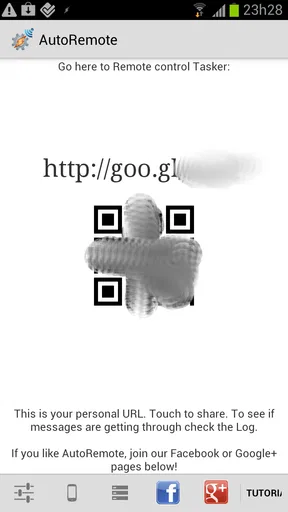
Once you’ve downloaded and installed the app, you’ll be greeted by a clean and intuitive interface. The first step is setting up your devices to communicate with each other. This involves pairing them through a unique URL, which is a breeze to generate within the app. Once paired, you can start sending messages or commands instantly.
The app integrates beautifully with Tasker, a popular automation app, allowing you to create personalized tasks. Imagine getting home and having your lights turn on and your favorite playlist start without lifting a finger. It’s all possible with the right setup.
Set up with a little patience
That initial connection is where I’d slow down and be methodical. Give each device a useful name, keep track of which end sends a message, and test each direction independently. A phone-to-computer action working correctly does not automatically prove that a computer-to-phone notification is configured the way you expect. Keeping the first test small makes the result easier to read and gives you a dependable starting point for later automations.
It’s also worth deciding what should happen when you are not actively watching the screen. A message that triggers a useful notification is different from one that starts a longer sequence of actions. I’d begin with feedback I can see, then connect it to a more consequential task only after I trust the routine. This is a practical safeguard: if a command is sent at the wrong time or a device is unavailable, a visible result is easier to understand than an action that quietly fails.
AutoRemote is not a replacement for every part of a home automation setup. It can pass messages into a workflow, but the lights, music, and other outcomes in the example depend on the services and automation you have configured around it. That distinction matters when planning a routine: the app is the communication link, while the actions themselves may rely on Tasker, a computer-side setup, or another compatible service.
Features That Stand Out
One of the standout features of AutoRemote is its flexibility. You can customize how your devices interact based on your preferences. Want your phone to send a notification to your PC every time you get a text? It’s doable. Need your computer to play a sound when your phone battery is low? Consider it done.
Another powerful feature is the app's ability to send push notifications. You can receive alerts on your phone about tasks completed on your computer, or vice versa. This level of integration keeps you informed and in control, no matter where you are.
Make messages easier to maintain
As a workflow grows, I’d keep the message names and meanings simple enough to recognize months later. One message for “finished” and a different one for “needs attention,” for instance, is easier to act on than a single notification whose meaning depends on context I may have forgotten. This small bit of discipline also helps when testing: I can trigger one event and check whether the expected response follows, without trying to diagnose an entire chain at once.
There is a trade-off between flexibility and upkeep. A highly customized setup can save repeated taps, but it also creates more pieces to remember when a routine changes. If I change how a computer task works, I’d revisit the related message and notification rather than assuming the old sequence still makes sense. For occasional, one-off actions, manual control may be quicker and less fragile than building an automation around them.
It helps to think about AutoRemote alongside the alternatives rather than expecting it to replace them all. A basic remote-control app is often a better choice if I want to view or operate a computer directly. A file-sharing tool is simpler when the job is just transferring a document. AutoRemote’s distinctive role is passing messages into a broader workflow, especially when I want a phone, PC, Tasker, or cloud service to respond to one another.
Settings that deserve a check
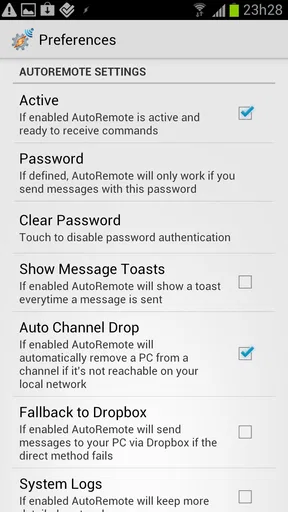
Before depending on a routine, I’d review how the devices are paired and confirm that the intended endpoint is the one receiving the message. A unique URL is convenient for establishing communication, but it is worth treating the connection details as part of the setup rather than as something to share casually. I’d keep messages purposeful and avoid sending sensitive details just because the app can pass information between devices.
I’d also test a routine in the conditions where I actually plan to use it: away from the computer, with the phone in hand, or while the computer is busy. Internet-based communication is useful precisely because the devices need not be beside each other, but that also means a dependable workflow should account for connectivity and for the receiving device being ready. If a routine matters, I would not assume that a quiet screen means it worked; I’d arrange a clear confirmation or check the receiving device.
The app’s current version is 3.2.9 and it supports Android 6.0 or later. It is rated for Everyone, which describes its content suitability, not how effortless its setup will feel. The interface may be approachable, but getting a useful result still involves deciding what sends a message and what should happen when it arrives. I’d consider that distinction before buying: the cost makes sense to me when I expect to use the bridge regularly, not merely because remote control sounds appealing.
Where the setup can feel limiting
The main friction is that AutoRemote is a connector, not a complete automation plan. People who enjoy tuning Tasker profiles or configuring a PC workflow will likely see that as a strength. Someone hoping to install one app and immediately control every device may instead find that each useful outcome requires thought and setup. Cross-platform use can be valuable, but the actual experience depends on the devices and services being connected, so I wouldn’t treat a broad platform mix as a guarantee that every desired action is ready-made.
Another limitation is that a message-based workflow needs sensible boundaries. A phone notification that confirms a finished job is low-risk; a message that kicks off an important action deserves more testing and a clear way to see whether it happened. I’d avoid making a routine so elaborate that I can’t explain what each message does. When a task must work with no troubleshooting, or when all I need is direct screen control, a purpose-built remote desktop tool is likely more comfortable.
Why AutoRemote is Worth Your Time
If you’re the kind of person who loves efficiency and hates unnecessary steps, AutoRemote is your dream come true. The app empowers you to streamline your digital life, saving you time and energy. It’s like having a personal assistant that knows exactly what you need, when you need it.
The app also shines in its ability to work across different platforms. Whether you’re using an Android phone with a Windows PC or a Mac, AutoRemote bridges the gap seamlessly. This cross-platform support is a huge plus for users with diverse tech ecosystems.
I’d add one qualification to that enthusiasm: the time savings arrive after the routine is designed and tested. If you repeat an action often, the setup effort can pay off; if you perform it once in a while, a manual action may remain simpler. That is why I’d judge the app by one specific recurring task rather than by how many possible connections it suggests. A small, dependable workflow is more useful than a long collection of automations I rarely remember to use.
A good fit for people who like repeatable habits
Experienced users can make the app feel natural by attaching it to habits they already have. I might send the same clear “start” message whenever I sit down to a particular task, then use a separate completion notification to know when I can move on. The benefit is not a mysterious hidden capability; it is consistency. Reusing a tested pattern reduces the temptation to invent a new command every time and makes the setup easier to understand later.
For someone deciding whether to try it, I’d ask three practical questions. Do you have at least two devices or services that should exchange messages? Is there a repeated action that would genuinely be easier to trigger remotely? And are you willing to spend time checking the connection and refining the response? If the answer is yes, the app has a clear purpose. If you only want to control a PC screen, share occasional files, or avoid configuration altogether, a more direct alternative will probably feel better.
AutoRemote was released on June 30, 2012, and its long-running, focused purpose is reflected in the way it rewards deliberate setup more than casual browsing. That history does not remove the need to test your own workflow, but it does help explain why its appeal is strongest among people who already think in terms of messages, triggers, and responses. I see it as a practical connector for that kind of user, rather than an all-in-one remote-control solution for everyone.
The Bottom Line
In a world where time is of the essence, AutoRemote offers a slice of convenience that’s hard to ignore. It’s not just about sending messages between devices; it’s about creating a connected life where your technology works for you. So, if you haven’t tried it yet, give AutoRemote a spin and watch as your devices come to life in perfect harmony.
Ready to take the plunge? You’ll find the download link on our site, and trust me, it’s worth every tap.
My recommendation is more measured: I’d choose it when I can name the routine I want to improve and already have the patience to connect its moving parts. The one-time price is easier to justify for a workflow I use repeatedly than for a vague hope of controlling everything. For the right person, AutoRemote can turn a few deliberate settings and shortcuts into a dependable habit. For everyone else, simpler tools may do the job with less effort.
Verdict
Strengths of AutoRemote
- Seamless device integration.
- Customizable notifications.
- Supports voice commands.
- Easy setup process.
- Works with Tasker.
Limitations of AutoRemote
- Requires initial learning curve.
- Limited free version features.
- Occasional connectivity issues.
- UI can appear outdated.
- Dependent on internet connection.
Similar Picks in This Category
View All
Google Calendar
Google LLC4.6

Google Drive
Google LLC4.3

Google Assistant
Google LLC3.9

Microsoft OneDrive
Microsoft Corporation4.6

Samsung Calendar
Samsung Electronics Co., Ltd.4.1

Microsoft OneNote: Save Notes
Microsoft Corporation4.6
Frequently Asked Questions
What is AutoRemote and how does it work?
AutoRemote is a versatile app that allows users to send messages and commands between their devices. It works by using a unique URL or QR code to link devices, enabling remote control functionality through notifications. Users can set up personalized actions and automate tasks seamlessly across Android and iOS platforms.
Is AutoRemote compatible with all devices?
AutoRemote is compatible with most Android and iOS devices. However, some features might be limited or unavailable on certain models due to hardware or operating system restrictions. It's advisable to check the app's compatibility with your specific device model and OS version before downloading.
What are the main features of AutoRemote?
AutoRemote offers features like device-to-device communication, task automation, and remote notifications. Users can create custom commands, integrate with Tasker for advanced automation, and enjoy seamless control over their devices. The app also supports encryption for secure communication and is highly customizable to fit various needs.
Are there any security concerns with using AutoRemote?
While AutoRemote supports encrypted communication to ensure data security, users should remain cautious and avoid sharing their unique URLs or QR codes with untrusted sources. Regularly updating the app and reviewing permissions can also help maintain security and protect personal information.
How user-friendly is AutoRemote for beginners?
AutoRemote is relatively user-friendly, with a straightforward setup process and an intuitive interface. However, users new to automation or remote control apps might encounter a learning curve. The app provides helpful tutorials and a supportive community to assist beginners in maximizing its potential.
